Projection
A camera's projection defines how the 3D scene is flattened onto a 2D image. PlayCanvas cameras support two projection types: perspective and orthographic.
Perspective Projection
Perspective projection, the default, mimics how our eyes and physical cameras work: objects appear smaller the further away they are. The volume of space the camera can see — its frustum — is a truncated pyramid.
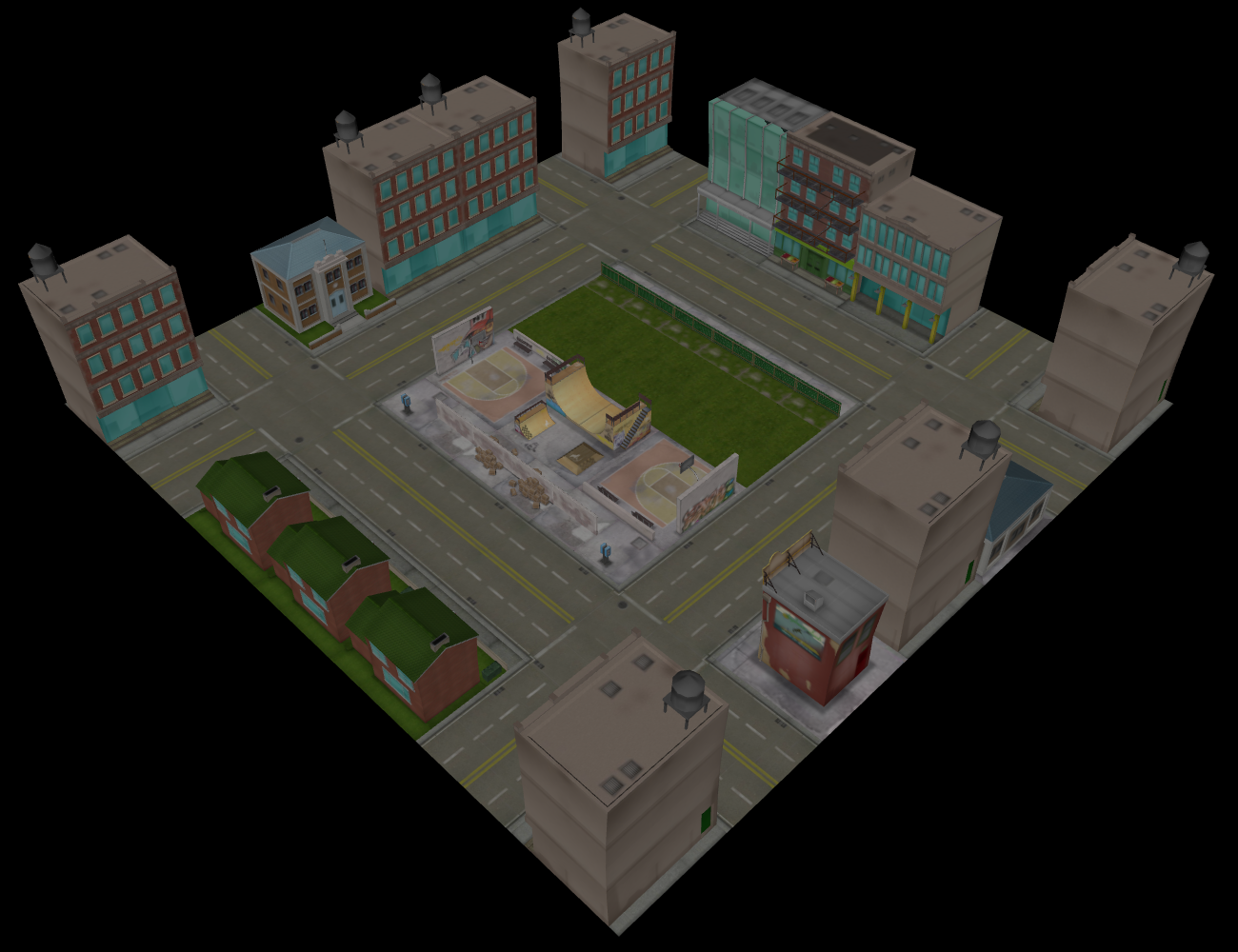
The shape of the frustum is controlled by the field of view (fov), an angle in degrees that defaults to 45. By default this angle is measured vertically; set horizontalFov to true to measure it horizontally instead. Larger values take in more of the scene, with a fisheye look at the extreme; smaller values have a zoomed-in, telephoto effect.
Orthographic Projection
Orthographic projection is a parallel projection: objects keep the same size on screen regardless of their distance from the camera. The frustum is a cuboid. It is often used for 2D and isometric games, as well as CAD-style visualizations.
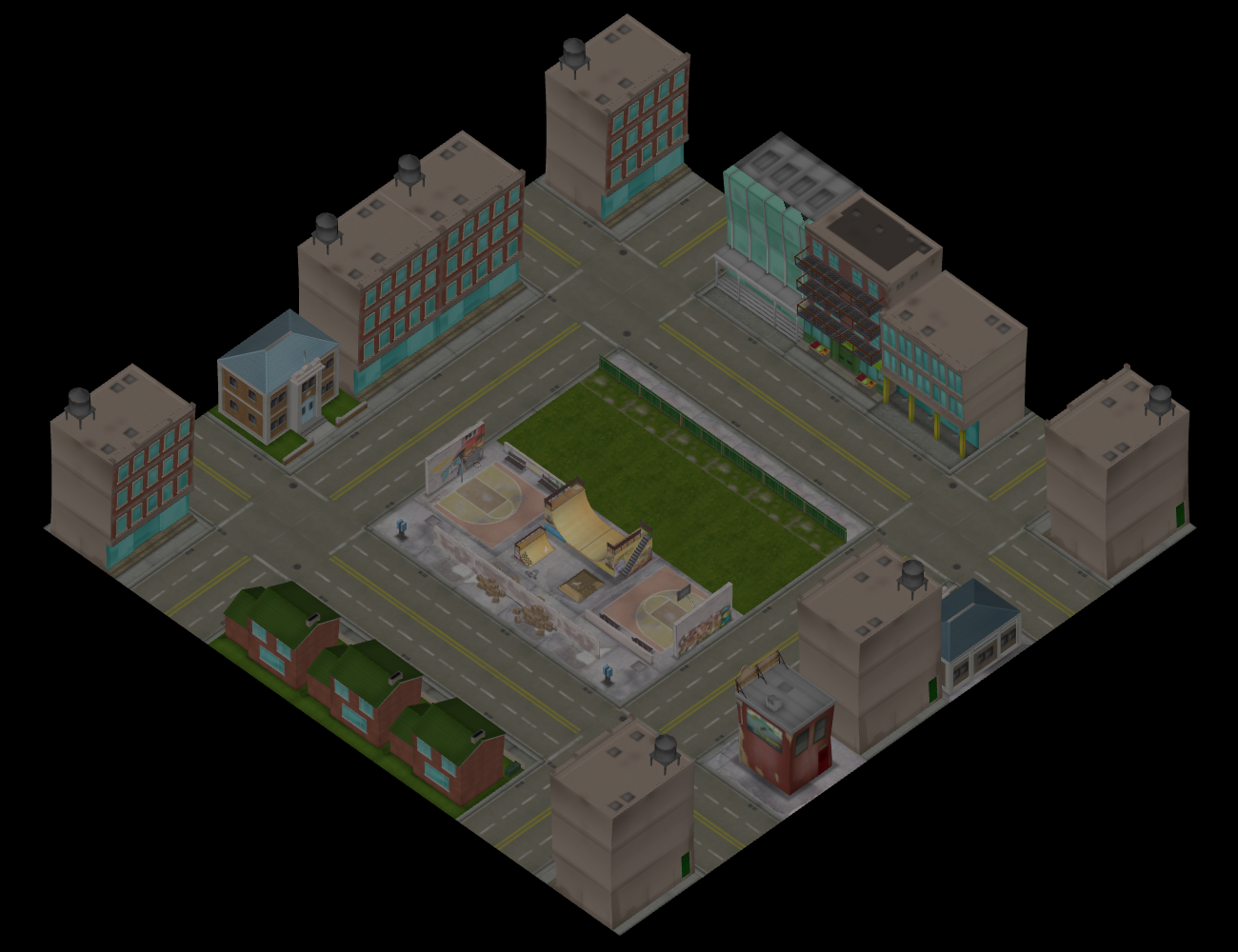
Since field of view does not apply, the size of the view is set with orthoHeight: half the height of the view volume in world units (defaults to 10). The width is derived from the aspect ratio.
Set the projection type as follows:
- Engine
- Editor
- React
- Web Components
// pc.PROJECTION_PERSPECTIVE (default) | pc.PROJECTION_ORTHOGRAPHIC
camera.camera.projection = pc.PROJECTION_ORTHOGRAPHIC;
camera.camera.orthoHeight = 5; // half-height of the view in world units
Select the camera in the Hierarchy and set Projection to Perspective or Orthographic in the Camera Component. The Field of View or Ortho Height field is shown accordingly.
import { PROJECTION_ORTHOGRAPHIC } from 'playcanvas';

<Entity name="camera">
  <Camera projection={PROJECTION_ORTHOGRAPHIC} orthoHeight={5} />
</Entity>
<!-- perspective is the default; add the orthographic flag to switch -->
<pc-entity name="camera">
  <pc-camera orthographic ortho-height="5"></pc-camera>
</pc-entity>
Clip Planes
The near and far clip planes cap the frustum at both ends, bounding the range of distances the camera can see. Anything closer than nearClip (default 0.1) or further than farClip (default 1000) is not rendered:
camera.camera.nearClip = 0.5;
camera.camera.farClip = 500;
The ratio between the far and near clip planes determines how depth buffer precision is distributed across the scene. If the near plane is very small relative to the far plane, distant surfaces can be left with too little precision to be separated reliably, causing flickering known as z-fighting. To avoid it, set the near plane as large as your scene can tolerate and the far plane no larger than necessary.
Aspect Ratio
By default, a camera's aspect ratio is computed automatically every frame from its render target and viewport (aspectRatioMode of pc.ASPECT_AUTO), so the image is never stretched as the canvas resizes. For special cases — such as rendering for a display with non-square pixels — set aspectRatioMode to pc.ASPECT_MANUAL and assign aspectRatio yourself.
Frustum Culling
When frustum culling is enabled (frustumCulling, the default), the engine skips rendering any mesh instance whose bounding box falls completely outside the camera's frustum, which can dramatically reduce the number of draw calls in large scenes. Disable it only if you need everything submitted to the GPU regardless of visibility.
The frustum itself is exposed as a Frustum via the read-only frustum property, which you can query for custom visibility logic:
const visible = camera.camera.frustum.containsPoint(entity.getPosition());