Multiple Cameras
A scene can contain any number of cameras, and they compose into the final image according to a simple model: every enabled camera renders its layers into its viewport of its render target (the screen, unless a render target is set), in order of priority — lower values render first.
This model supports a wide range of setups: split-screen multiplayer, picture-in-picture overlays such as minimaps and rear-view mirrors, UI rendered over the 3D scene, and live render-to-texture surfaces like security monitors and portals.
Viewports
By default, a camera renders to the full width and height of its render target. The rect property restricts rendering to a rectangle, specified as [x, y, width, height] in normalized 0–1 coordinates (the origin is the bottom-left corner).
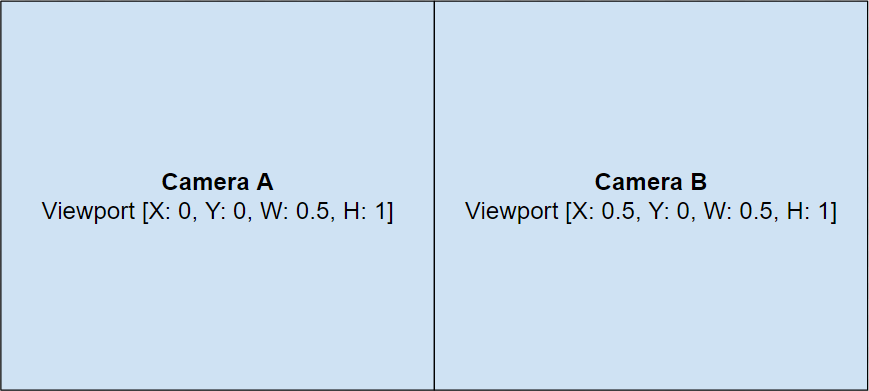
For 2-player horizontal split-screen, two cameras each take half the screen:
- Engine
- Editor
- React
- Web Components
// Player 1: left half of the screen
camera1.camera.rect = new pc.Vec4(0, 0, 0.5, 1);

// Player 2: right half of the screen, rendered after camera1
camera2.camera.rect = new pc.Vec4(0.5, 0, 0.5, 1);
camera2.camera.priority = 1;
Select each camera in the Hierarchy and set its Viewport (X, Y, Width, Height) and Priority in the Camera Component.
<Entity name="player1Camera">
  <Camera rect={[0, 0, 0.5, 1]} />
</Entity>
<Entity name="player2Camera">
  <Camera rect={[0.5, 0, 0.5, 1]} priority={1} />
</Entity>
<pc-entity name="player1-camera">
  <pc-camera rect="0 0 0.5 1"></pc-camera>
</pc-entity>
<pc-entity name="player2-camera">
  <pc-camera rect="0.5 0 0.5 1" priority="1"></pc-camera>
</pc-entity>
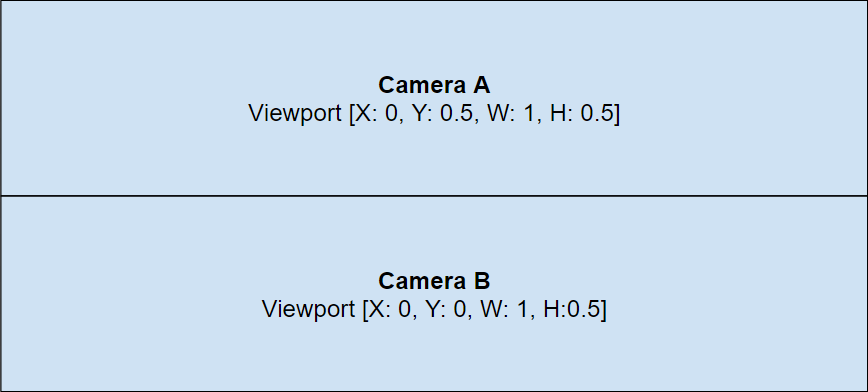
For vertical split-screen, stack the viewports instead — [0, 0.5, 1, 0.5] on top and [0, 0, 1, 0.5] below:
A related property, scissorRect, clips rendering to a rectangle in the same normalized format without changing how the image is projected into the viewport.
Layers
Each camera renders only the layers listed in its layers property, so different cameras can see entirely different subsets of the scene. Typical uses include a UI camera that renders only a UI layer over the game, a minimap camera that skips effects layers, and first-person weapon rendering. See the Camera Model Masking tutorial for a worked example.
Camera Stacking
When one camera renders on top of another — a picture-in-picture overlay, or a full-screen camera drawing a different set of layers — the later camera (higher priority) must not wipe out the earlier camera's image. Disable its clear flags as appropriate:
// Render an overlay camera on top of the main view, in the bottom-right corner
overlay.camera.priority = 1;
overlay.camera.rect = new pc.Vec4(0.7, 0, 0.3, 0.3);
overlay.camera.clearColorBuffer = true;  // overlay has its own background
overlay.camera.clearDepthBuffer = true;  // don't depth-test against the main view

// For a full-screen overlay that composites over the main view instead:
// overlay.camera.clearColorBuffer = false;
Render Targets
Instead of the screen, a camera can render into an offscreen texture by assigning a RenderTarget to its renderTarget property. The resulting texture can then be applied to a material — for in-world screens, mirrors and portals — or processed further. See the engine's render-to-texture example:
Performance Considerations
- Every enabled camera renders its layers again — draw calls scale with the number of cameras. Restrict each camera's
layersto the minimum it actually needs. - Reducing a camera's
rectreduces the pixels it fills, but not the per-draw-call CPU cost of the objects it renders. - Per-camera post-processing runs once per camera, so effects on split-screen views multiply their GPU cost.
- Render targets that are only needed occasionally (e.g. a static mirror) don't have to be updated every frame — disable the camera and enable it on demand.