Cameras
Cameras render your scene to the screen. A camera is simply an entity with a CameraComponent attached — the scene is drawn from the entity's position and orientation, so you aim a camera by moving and rotating its entity just like any other. Cameras look down their local negative Z axis.
You need at least one enabled camera in your scene to see anything. Beyond that single camera, there is a lot you can control: the projection that maps the 3D scene to a 2D image, the tone mapping that shapes the final colors, and how multiple cameras compose views for split-screen, overlays, and render-to-texture.
Creating a Camera
- Engine
- Editor
- React
- Web Components
// Create an entity with a camera component
const camera = new pc.Entity('Camera');
camera.addComponent('camera', {
    clearColor: new pc.Color(0.3, 0.3, 0.7)
});
app.root.addChild(camera);

// Aim the camera by transforming its entity
camera.setPosition(0, 5, 10);
camera.lookAt(0, 0, 0);
New scenes are automatically populated with a camera entity. To create another, use the Entity menu, which creates an entity with a Camera Component in a single step:
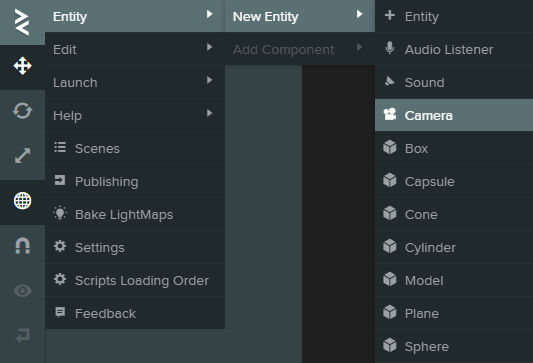
All camera properties can then be edited in the Inspector.
<Entity name="camera" position={[0, 5, 10]}>
  <Camera clearColor="#4d4db3" />
</Entity>
See the <Camera/> component reference for all available props.
<pc-entity name="camera" position="0 5 10">
  <pc-camera clear-color="0.3 0.3 0.7 1"></pc-camera>
</pc-entity>
See the <pc-camera> tag reference for all available attributes.
Clearing the Render Target
Before a camera renders the scene, it clears its render target. You can control what gets cleared and to what color:
camera.camera.clearColor = new pc.Color(0, 0, 0);

camera.camera.clearColorBuffer = true;   // clear the color buffer (default: true)
camera.camera.clearDepthBuffer = true;   // clear the depth buffer (default: true)
camera.camera.clearStencilBuffer = true; // clear the stencil buffer (default: true)
If your scene has a skybox, it covers the clear color entirely. Disabling the clear flags becomes useful when stacking several cameras on top of each other — see Multiple Cameras.
In This Section
- Projection — perspective vs orthographic projection, field of view, clip planes and frustum culling.
- Tone Mapping & Exposure — map HDR scene lighting to your display, with optional physical exposure controls.
- Multiple Cameras — compose views with priorities, viewports, layers and render targets.
- Camera Controls — add orbit, fly and first-person navigation with the engine's ready-made script.
- Screen and World Coordinates — convert between 2D screen positions and 3D world positions.
- Scene Picker — accurately select the objects under a screen coordinate.
- Depth Layer — give shaders access to the scene's color and depth buffers.
Going Further
- Post-processing — bloom, depth of field, SSAO, TAA, vignette and more are applied per camera. See Post Effects.
- AR and VR — a camera can drive an immersive WebXR session via
startXr(). See the XR section. - Per-camera fog — override the scene's fog settings on an individual camera with
fog. - Custom projections — supply
calculateProjectionandcalculateTransformcallbacks for advanced effects such as oblique projections and planar reflections. - Tutorials — try Camera Following a Path and Orbit Camera.